

Mimaki Ink Chip Not Recognized? What to Check Before Ordering a Replacement
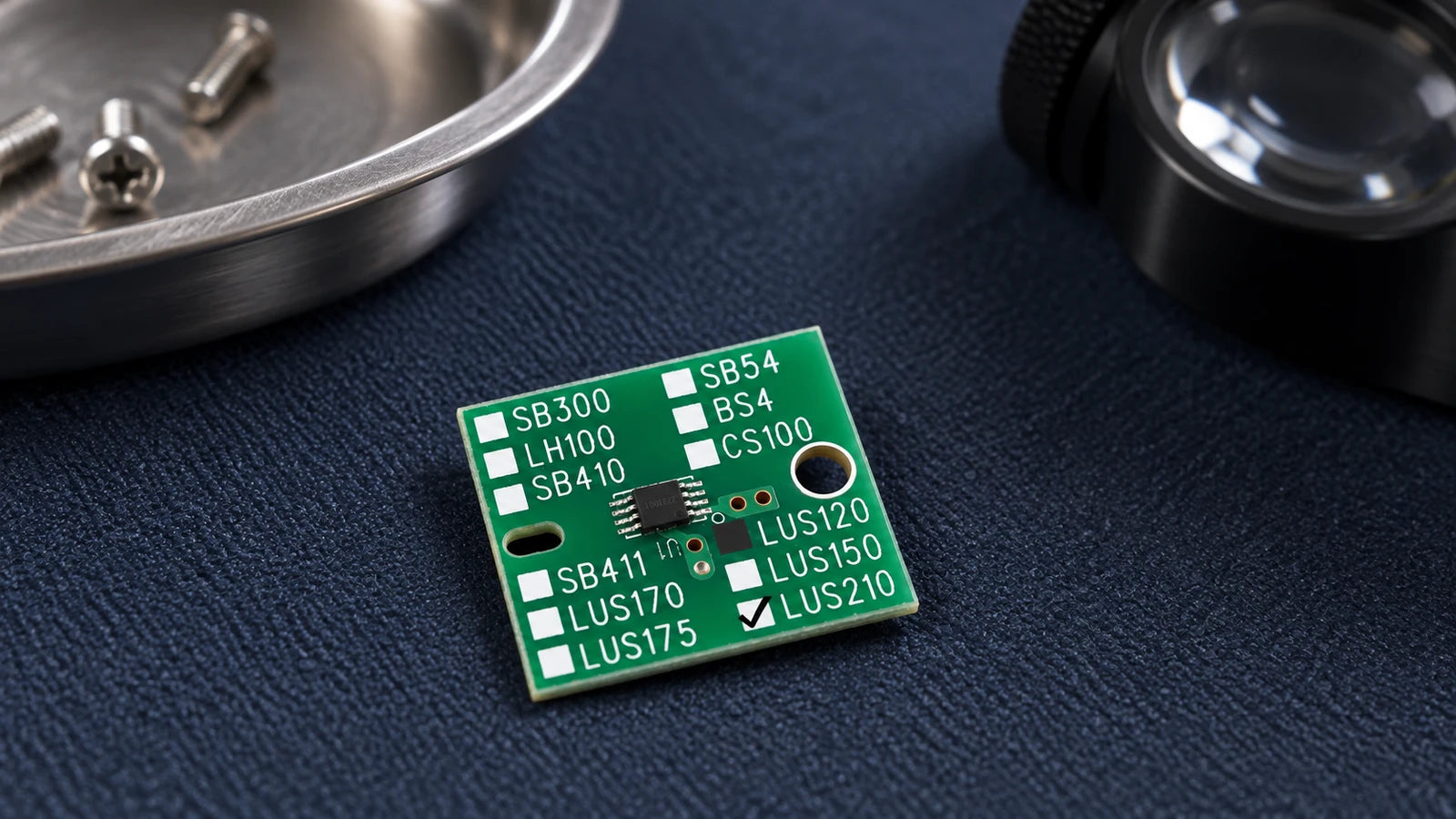
If your Mimaki ink chip is not recognized, record the complete message before ordering a replacement. Match the printer, installed ink series, color and chip information, then follow the operator checks for that exact model. A red indicator or an ink-supply warning alone does not prove the chip has failed.
This guide helps owners and purchasing teams prepare a replacement-chip inquiry. It covers the identification checks behind the LUS-210, LUS-120 and LUS-175 chip listings below, without assuming they fit every Mimaki printer.
Which Problem Are You Seeing?
The chip cannot be read
Keep a photo of the full error. Check the correct chip and permitted seating procedure in your model's manual before buying another.
The ink or color is wrong
Compare the installed ink label, affected channel and ordered chip option. Similar-looking circuit boards are not enough to establish a match.
The warning remains after refill
Identify whether the message concerns remaining ink, expiry, registration or supply. A replacement chip does not refill a bottle or repair a blocked ink path.
Read the Full Message, Not Just the Red Light
Photograph the display before removing anything. Include the error number, wording, affected color and whether the problem began after changing the bottle, chip or printer settings.
For example, the CJV150 manual separates WRONG INK IC, ink-family mismatch and INK COLOR warnings. Its chip-read guidance includes refitting the affected cartridge and seeking service if the warning persists. That is a CJV150 procedure, not an instruction to use the same mounting method on a bottle-fed machine.
- Record the full printer model, including any MkII or Plus suffix.
- Note whether one color or several channels are affected.
- Keep the old chip and ink-label photos for comparison.
- Tell support which checks have already been attempted and what changed afterward.
If the display reports INK END or INK NEAR END after bottle replacement, consult the appropriate supply procedure. Mimaki's bottle-replacement FAQ discusses bottle preparation, cap fit, seating and the paired chip. Those checks explain why an ink warning needs more context than “the chip light is red.”
Build the Chip Order from Six Details
Send these details together. A photo of the board is useful, but its outline, green color or printed family list cannot confirm the electronic information recorded on it.
Full model, installed ink set, country/region and firmware version if available. Ask the supplier to confirm the offered chip against that configuration.
Photograph the current bottle or pack label. Keep LUS-210, LUS-120 and LUS-175 separate in the inquiry; do not order a generic “Mimaki UV chip.”
Match the affected channel and exact option. C and LC, or M and LM, are different order labels. A color listed for sale does not prove your machine has that channel.
The three linked listings currently show 1000ml chip options. This describes the selected chip option; it does not mean the order includes a liter of ink.
Send both sides of the current chip plus any packaging code. Retain suffixes in the quotation rather than shortening them to a color name.
Say whether the chip is unused, previously fitted or already registered, and include the complete registration message when relevant.
The product photos also carry several ink-family names on a single PCB design. A marked checkbox helps identify the pictured option, but the unmarked names are not a list of interchangeable inks or supported machines.
Use the Procedure for Your Exact Printer

Mimaki's UJV100-160 / UJV100-160Plus manual warns against touching the chip's metal parts because static, contamination or damage can affect it. Keep fingers off the contacts and follow the machine's handling instructions.
For that series, the manual describes chip registration in LOCAL mode. It distinguishes an already-registered chip from a registration-limit message and warns about assigning the wrong slot. Do not treat every registration refusal as a defective component.
Use the current manual for your exact machine for the bottle-change sequence, slot, chip orientation and power state. Manufacturer instructions describe their specified consumables; citing them does not certify an aftermarket chip.
Check the Chip Before Its First Use
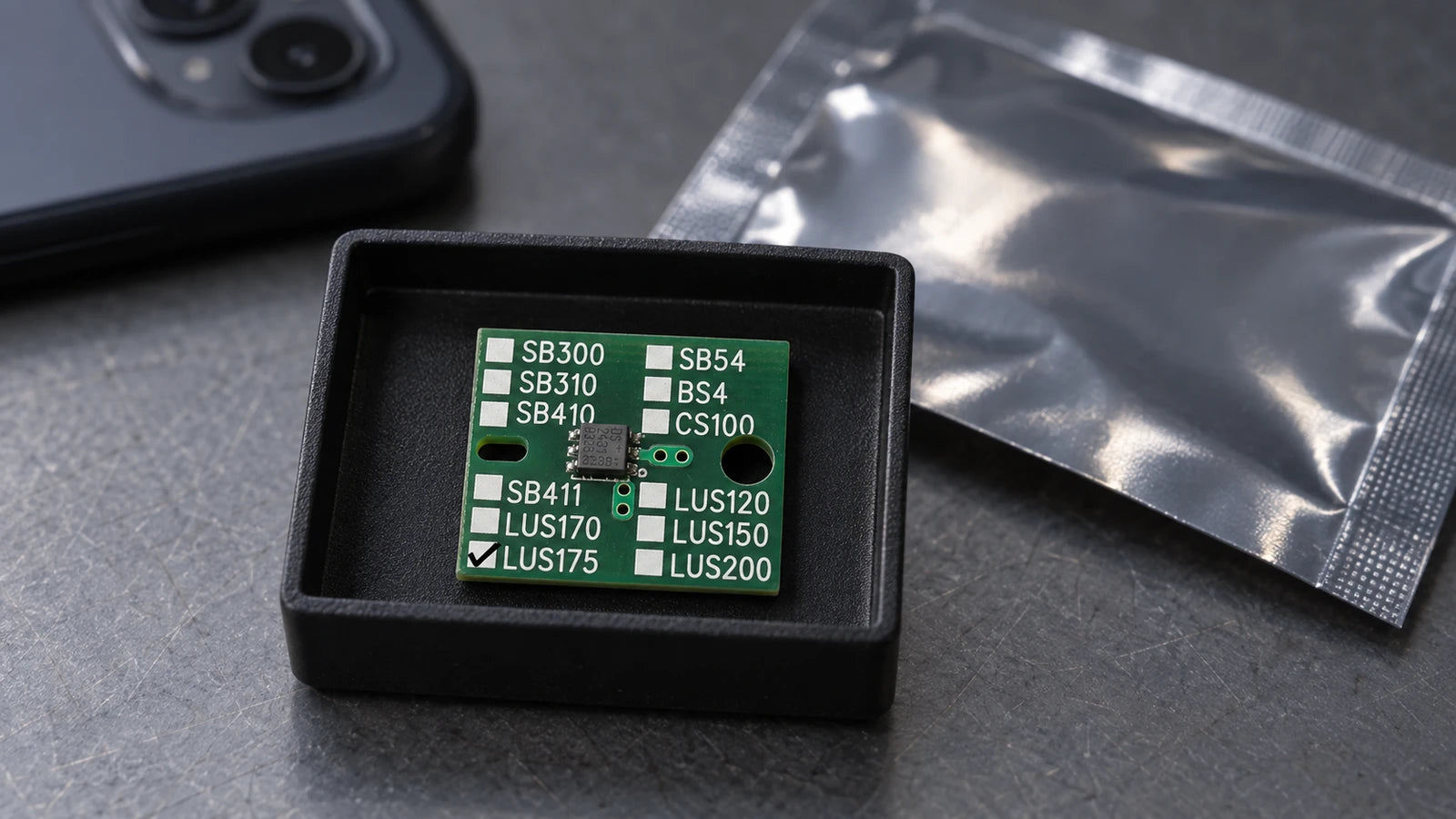
- Photograph the delivered label, chip markings and selected color.
- Compare the series, capacity reference and revision with the written order confirmation.
- Check for visible damage without touching or modifying the contacts.
- Resolve differences with the seller before installation or registration.
The linked products are sold as single-use chips. Do not assume they can be reset or moved between printers. Keep the chip and records after fitting if your model's procedure requires them.
Review the Matching Chip Listing
These are compatible aftermarket chip-only products, supplied by UV INK PRO as an independent seller. They contain no ink, cartridge or maintenance fluid. Confirm fitment and the exact option before payment; buying a chip does not establish the cause of an unresolved fault.
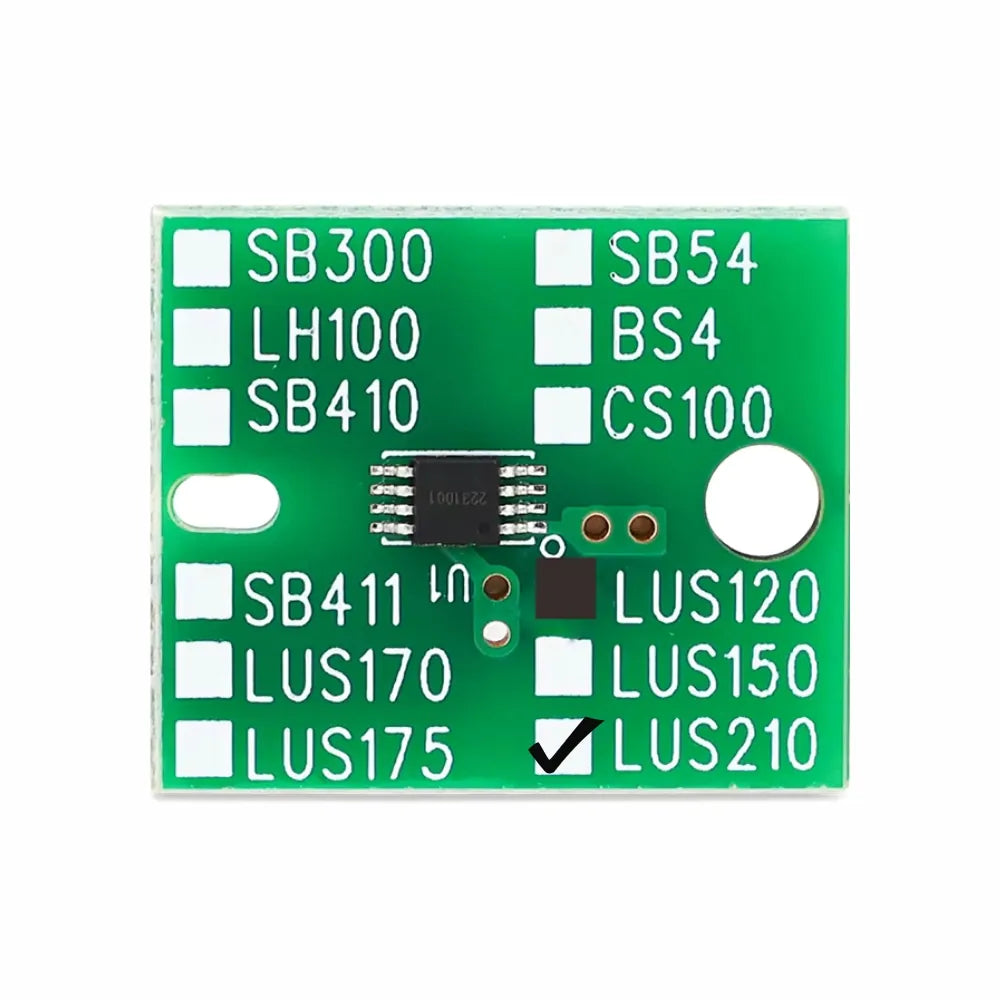
LUS-210 One-Time Ink Chip
Review the 1000ml reference and full color/version option, including the listed M-V2 distinction. Confirm the supplied revision.
Check LUS-210 Options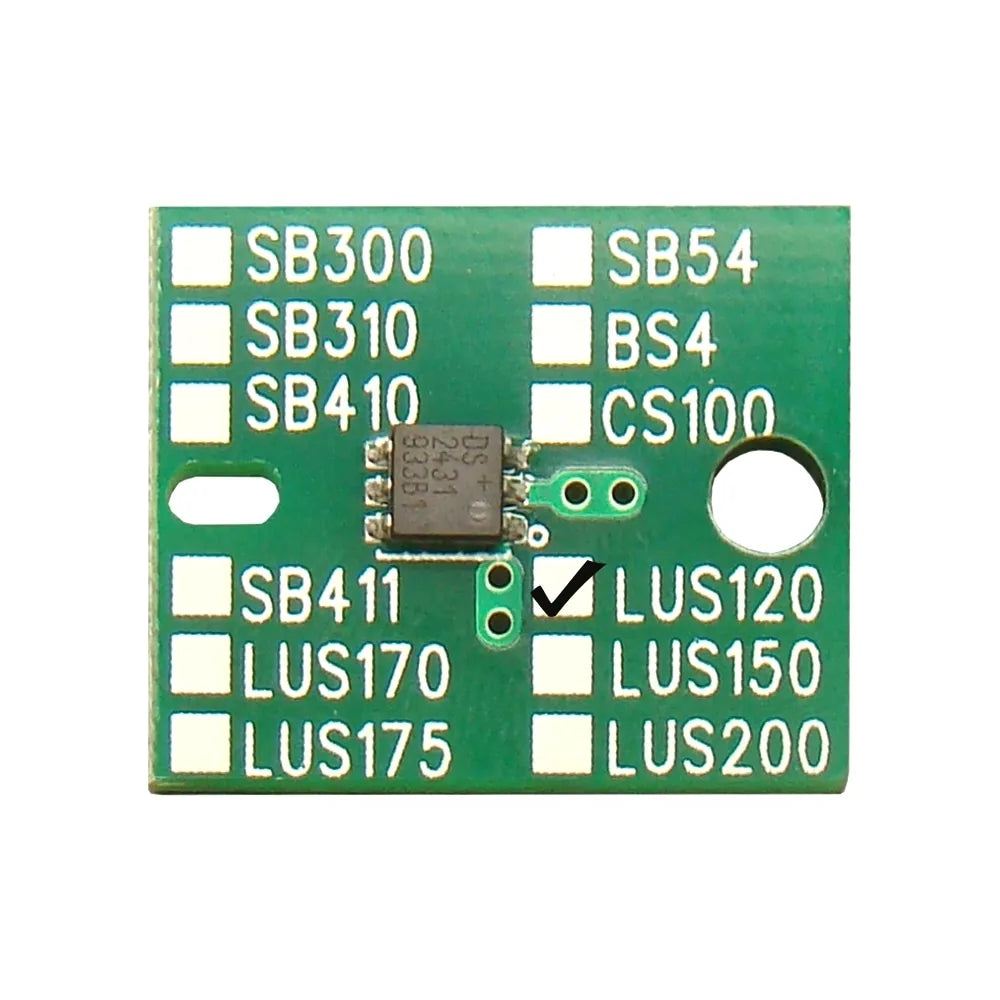
LUS-120 One-Time Ink Chip
Match the current LUS-120 setup and required color. The listing alone does not establish support for a particular printer configuration.
Check LUS-120 Options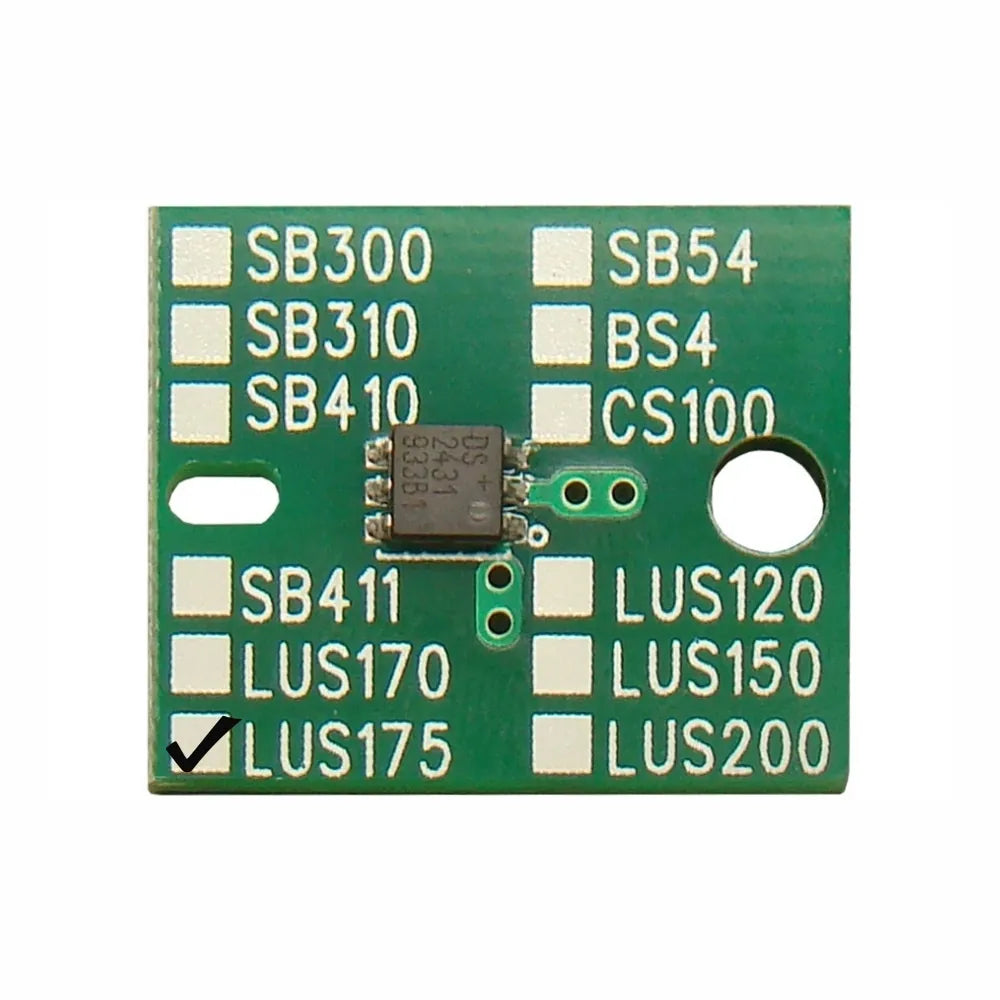
LUS-175 One-Time Ink Chip
Confirm series, color, capacity reference and regional configuration. Keep it separate from similarly shaped chips for other ink families.
Check LUS-175 OptionsNeed the ink itself? Read the Mimaki LUS-210 ink buying guide. Original ink and an aftermarket replacement chip have separate product identities; confirm what is included in each order.
Send the Evidence Before Ordering
Contact UVINKPRO support with the full printer model, error photo, ink label, both chip faces and requested color/capacity. Ask for the exact chip option and written configuration confirmation before placing the order.
Frequently Asked Questions
Does a red ink indicator mean the chip is faulty?
No. Read the full display message and model-specific guidance; the indicator alone does not identify whether the issue is recognition, remaining ink or supply.
Can I use LUS-120, LUS-175 and LUS-210 chips interchangeably?
Do not assume so. Match the installed ink series and exact printer configuration, even when the boards look similar.
Does a 1000ml chip include ink?
No. These listings supply the selected chip only. Order ink separately when needed and confirm any bundle contents explicitly.
Can I reset a one-time chip or use it to extend expired ink?
These products are offered as single-use chips, not resetters. A chip does not restore expired ink's condition; follow the ink and printer manufacturer's expiry guidance.
What if a confirmed-correct replacement is still not recognized?
Keep the error and replacement details, stop repeated trial fitting, and request service assessment. Another chip purchase should follow evidence of the cause, not the warning alone.
Reference and Product Notes
Product options checked September 29, 2026. The linked Mimaki manuals and FAQ support the stated model-specific examples; consult the current revision for your machine. Product illustrations cannot verify chip programming, region, firmware support or current supplied revision.